
Your company’s cash flow is the cornerstone of your finances. Here are seven ways QuickBooks Online can help you improve it.
We sometimes hear people use the terms “cash flow” and “profitability” as if they meant the same thing. This is a common misunderstanding. Profitability refers to what’s left when you subtract expenses from revenue. Your company’s cash flow, on the other hand, tells you how your money is moving into and out of the business. It’s similar to liquidity – the ability to pay your bills. So, you might be profitable but have poor cash flow if you have too much money tied up in unsold inventory or unpaid invoices, for example.
QuickBooks Online provides several ways for you to keep track of your real-time cash flow and improve it. It’s critical that you pay close attention to this metric. You could run a profit and loss report daily and think you’re doing OK, when in reality, your cash flow is in the danger zone. Here are seven ways you can keep a close watch on it.
Know Your Real-Time Account Balances
One of QuickBooks Online’s most helpful tools is its ability to import transactions from your credit card and other bank accounts. Knowing what your current balances are doesn’t tell you how much money you can actually use to pay expenses, but it’s important, nonetheless. Make it a habit to check your cleared transactions frequently and make sure they’re categorized correctly so your reports reflect your financial reality.
And reconcile all your accounts on a regular basis. We help clients do this sometimes, and we often find transactions that are missing or duplicated or have otherwise been recorded incorrectly. This will skew your cash flow. Let us know if you want our assistance with this.
Send Invoices Promptly
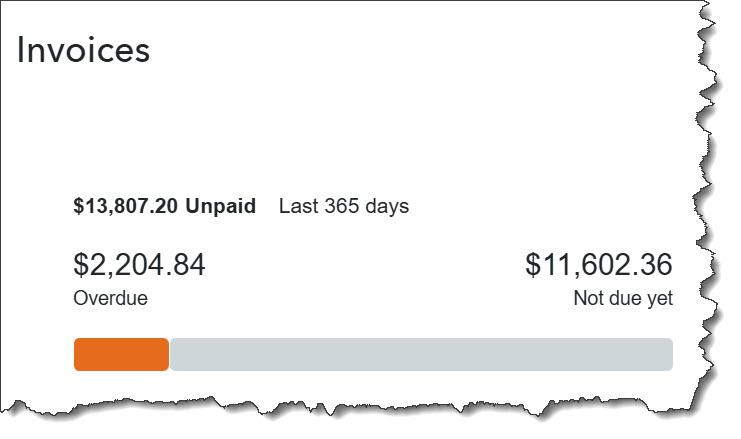
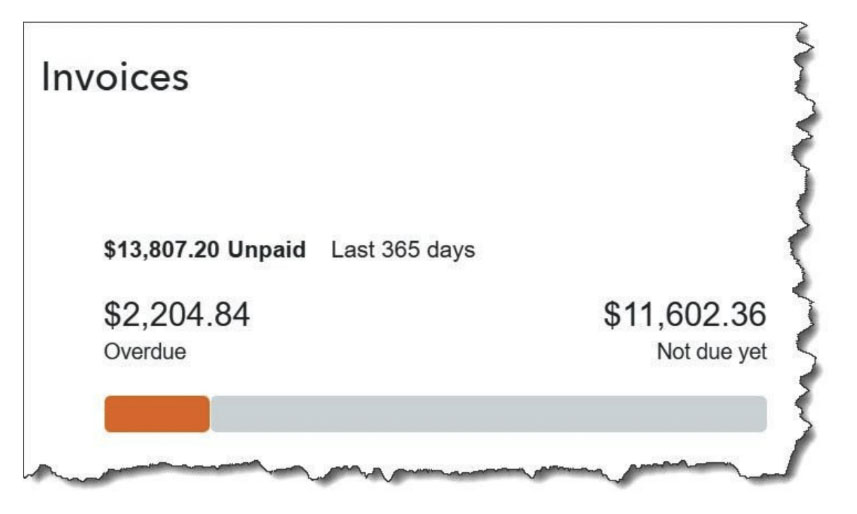
QuickBooks Online helps you keep a close watch on the status of your invoices, so you don’t have too much money tied up in late payments.
You know that sending an invoice as soon as you make a sale doesn’t guarantee that the customer will be as prompt at paying it. We’ve gone over ways to speed up payments before, actions like:
- Sending reminders,
- Offering discounts for early payments and/or assessing finance charges on late payments, and,
- Improving the look and content of your invoices.
QuickBooks Online offers automated tools for all of these. We can provide assistance if you need it. It also offers two Accounts Receivable reports (summary and detail) that can show you in one view who is late with payments and by how much. Click Reports in the toolbar, then Standard reports | Who owes you.
Stay On Top of Bills
It’s equally important to monitor the money that will be going out in addition to what’s coming in. Look at your pending bills so you know what due dates are approaching and whether you’ll have the ability to meet your obligations. QuickBooks Online provides more than one way to find this information. You can click All apps in the toolbar, then Expenses & Bills | Bills. Here, you can see the status of your bills: For review, Unpaid, Paid, and Recurring. You can also go to the Accounts payable aging summary or detail report (located under What you owe in the Standard reports list).
Your company’s cash flow should always be in the back of your mind when you’re looking at bills. You can’t avoid some of them, like perhaps office rent and utilities and communications hardware and services. But the more you can chip away at what might be unnecessary bills, the better your cash flow will be.
Consult the Profit and Loss Report
As we mentioned earlier, cash flow is not the same thing as profitability. But it’s a good idea to look at your Profit and Loss report (under Reports | Business overview) alongside your accounts receivable and payable and your bank balances. This should give you a good picture of your company’s financial health.
Keep a Close Eye on Expenses
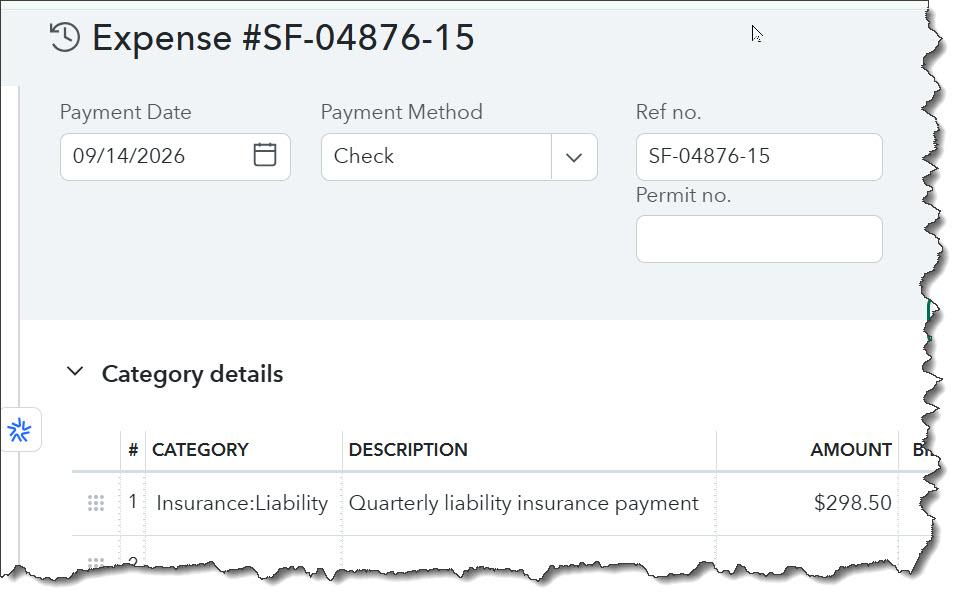
Monitor your expenses to see where you can reduce them to improve your cash flow.
Like you do with bills, review your expenses regularly (Home | Expenses & Pay Bills | Expense transactions). Look for:
- Costs that might have increased unexpectedly,
- Subscriptions you’re no longer using,
- Unnecessary fees, and,
- Small costs that are adding up.
Use QuickBooks Online’s Cash Flow Tools
QuickBooks Online offers two cash flow tools: the Cash flow overview and the Cash flow planner (hover your mouse over Reports, then click Financial planning). There’s another report, the Statement of Cash Flows, under Reports | Business overview. We can create, customize, and analyze this complex report for you.
Review Your Cash Flow Frequently
Regular cash flow awareness is critical. We suggest you take some time every week to review your bank transactions, outstanding invoices, upcoming bills, and cash balances. Then use QuickBooks Online’s cash flow tools to see where you stand. You may be able to spot problems while they’re still fairly easy to manage.
QuickBooks Online can’t solve your cash flow problems, of course, but it provides the tools and information you need to analyze your financial situation. While it’s good to know what your account balances are, evaluating cash flow involves knowing where your cash is coming from, where it’s going, and whether you’ll have enough when you need it. We’d be happy to hear from you if you need our assistance understanding this critical element of your finances and how QuickBooks Online can help.
SOCIAL MEDIA POSTS
Cash flow is not the same thing as profitability. QuickBooks Online can help you explore the difference.
Sending invoices promptly is one way to get your customers to pay faster. QuickBooks Online automates part of this process.
Do you understand how cash flow is measured, and how yours is? We can help with this.
QuickBooks Online can help you understand your cash flow. We can show you the tools it provides.